Playing with the Nest Rest API

I bought the Nest thermostat for fun. I purchased it couple months ago to go with the new furnace and air conditioner. I could have gone with a thermostat provided by the contractor, or any number of cheaper options, but I wanted something with which to play. Even though I don’t consider myself a “gadget person”, I wanted this gadget.  I wanted to play with it’s API and see what I could make it do.

With summer ending and school starting, there was a lot going on in the household.  Also, we went for about a month when neither air conditioning nor heating were required, so internal climate control was not often on my mind.  Now the heat is coming on for a few minutes in the morning and I’ve started playing with the Nest Rest API.

The Nest developer website has documentation that helped get me up and running.  As usual, the trickiest part in getting started is figuring out how to authenticate, but that actually went smoothly (I’m not sure whether I’m getting better at doing that sort of thing, or if the Nest process and/or instructions are better).  I was then able to read information about my Nest thermostat.  It was when I tried to write data that I ran into problems.

I had many failures in trying to perform a write.  At first I tried various incarnations of Java code to perform a REST PUT, but I had a variety of problems and errors.  I simplified things.  I tried a simpler use case.  I removed Java from the picture and just used curl.  Eventually I resorted to the instructions I found to change the target temperature on a thermostat:

curl
-X PUT
-H "Content-Type: application/json"
-H "Authorization: Bearer c.lPg4Z..."
-d "{"target_temperature_f": 72}"
'https://developer-api.nest.com/devices/thermostats/DEVICE_ID'

I plugged in my own authorization token and device ID, but still it wouldn’t work.  After a lot of kicking and swearing and reading various websites and forums, I came up with:

curl
-L 
-X PUT 
-H "Content-Type: application/json"
-H "Authorization: Bearer c.lPg4Z..." 
-d '72' 
https://developer-api.nest.com/devices/thermostats/DEVICE_ID/target_temperature_f

The key differences are:  1) The “-L” flag tells curl to follow the 307 redirect that is returned, 2) Passing just the desired value instead of a JSON snippet, and 3) Specifying the variable name as part of the URL.

When I plugged in my authorization token and device id, things worked–by the time I had taken the seven steps from my disheveled desk to the thermostat, the new value had taken affect and the Nest was turning on the heat.

Although there was some frustration along the way, I had fun playing with the Nest Rest API and am glad I was able to get some basic use cases to work.  Now that I know how to read and write data, I can make make something interesting.

Running a Java program every 15 minutes

I wrote a simple Java program that I wanted to run every 15 minutes.  I decided to wrap everything into a Docker image so that I would get the logging, restart capability, and portability goodness that one gets for free when running a Docker container.  It’s not a difficult thing to do, but it took me longer than it should since I made some incorrect assumptions.

Since I wanted the image to be small, I went with an “Alpine” version of the openjdk image.  My first incorrect assumption was that I could use cron and crontab like I do on Ubuntu or Red Hat systems–but Alpine doesn’t come with cron.  However, it’s actually easier than messing with crontab–I just had to put my script into the /etc/periodic/15min directory.

Once I had the script in place, I tried to run the container, but eventually discovered the the small Alpine image does not have the daemon enabled when the container starts up.  This was solved by running crond in the foreground.  Here’s a Dockerfile showing the important bits:

ROM openjdk:alpine
MAINTAINER Nathan Bak <dockerhub@yellowslicker.com>

# Create directory to store jars and copy jars there
RUN mkdir /jars
COPY jars/*.jar /jars/

# Copy bin directory of project to root directory
COPY bin/ /

# Copy runJavaApp script into correct location and modify permissions
COPY runJavaApp /etc/periodic/15min/
RUN chmod 755 /etc/periodic/15min/runJavaApp

# When the container starts, run crond in foreground and direct the output to stderr
CMD ["crond", "-f", "-d", "8"]

Here is the runJavaApp script:

#!/bin/sh
java -cp /:/jars/commons-codec-1.9.jar:/jars/commons-logging-1.2.jar:/jars/fluent-hc-4.5.2.jar:/jars/httpclient-4.5.2.jar:/jars/httpclient-cache-4.5.2.jar:/jars/httpclient-win-4.5.2.jar:/jars/httpcore-4.4.4.jar:/jars/httpmime-4.5.2.jar:/jars/jna-4.1.0.jar:/jars/jna-platform-4.1.0.jar com.yellowslicker.sample.Client

The “gotchas” I ran into with the script include:

  1. The script must begin with #!/bin/sh (out of habit I tried #!/bin/bash, but Alpine doesn’t come with bash)
  2. Each jar must be listed explicitly (I tried using /:/jars/*.jar for my path, but it didn’t work)

There are a lot of ways to schedule things, but this method was simple (once I figured it out) and I think it is robust.  In my case, it also fits well into the Docker microservice environment I’m running.

Sherlock Holmes: Predictable and Original

2016-10-09-18-12-22

Several years ago, my wife and I purchased a collection of Sherlock Holmes stories as a Christmas present for our niece and I mentioned that I had never read any Sherlock Holmes save an abbreviated version of Hound of the Baskervilles I encountered in fifth grade.  I believe my wife was appalled at this dearth in literary knowledge and as a remedy I soon received a nice version of the Sherlockian canon.  I like to consume literature in bulk–there was no intimidation at 2000-3000 pages, but rather a comfort of knowing there were many hours of reading material immediately available to me.  And so I began.

I really enjoy reading about the various adventures of Sherlock Holmes, but initially I was surprised at how well I could predict the outcome.  Not only did I out pace Watson, but sometimes even the great sleuth himself.  Initially I assumed I was just incredibly clever, but soon reality set in there was the realization that, though the details were different, the “twist” was something previously encountered.  I had read various mysteries including a binge with Agatha Christie while in college.  Before that I had ready Hardy Boys novels (also in mass quantities) and watched episodes of Scooby-Doo.  Sherlock Holmes was quite original when it was written, but it has since become the foundation upon which most modern Western mystery is built.

I think I enjoy the short stories more than the novels; that’s odd considering my general preference towards quantity.  The short stories come across as more tightly written and more focused on the mystery rather than a lot of back story.  Also, since I usually had a good idea where the story was headed, I think I missed out on a certain measure of suspense.

Even though most modern readers won’t be thoroughly astounded by the genius of Sherlock Holmes because of the predictability, it’s not due to lack of originally for it is the original.  Reading the text is a fun journey to the early days of the mystery genre.  If you haven’t yet experienced the world of Holmes and Watson, enjoy the originality and don’t fret the predictability.

The Parable of the Soccer Coach

A coach went to coach a soccer game and place his players on the field.

And as he coached, some players fell into pleasant conversation and failed to notice the game going on around.

And some players went running all over the field after the ball at a full sprint regardless of where the ball went.

And as the minutes passed they quickly tired and, because they had no stamina, whined for a sub.

And some failed to spread out and instead ended up in a clump of players resembling a rugby scrum; and the flailing feet and elbows caused bruised shins and sore ribs.

But others played their assigned positions applying practiced skills to the best of their individual abilities and together they had great plays: some scoring goals, some making assists, some playing a solid defense.


Running a Docker container when the machine starts

Normally when I have a Docker container that I want to automatically come up whenever the machine restarts, I simply use –restart=always when running the container (or “restart: always” in a Docker Compose YAML file).  Recently encountered a situation where that didn’t meet my needs.  I thought it would be quick and easy to start the container from a service (a la systemd).  It ended up being easy, but it wasn’t as quick as I thought because I made some incorrect assumptions and sloppy mistakes along the way–so in case I need to do this again I am documenting what I did here . . .

I was using an Ubuntu 16.04 machine and for my example I’m using my Beaverton School District Calendar image.  To create the actual service, I created the file /etc/systemd/system/schoolCal.service with the contents:

[Unit]
Description=School Calendar Service
Requires=docker.service
After=docker.service

[Service]
Restart=always
ExecStart=/etc/systemd/system/schoolCal.sh

[Install]
WantedBy=multi-user.target

There’s nothing special about the service definition, it basically runs the schoolCal.sh script.  The problem I encountered when creating the service file was I forgot to add the dependency on the docker.service (I’m not sure if both “Requires” and “After” need to be set, but at least one of them does).  To enable the service I ran:

sudo systemctl enable schoolCal

Here are the contents of the schoolCal.sh script:

#!/bin/sh
docker pull bakchoy/beavertonschoolcalendar
docker run -i --net host -p 9999:9999 bakchoy/beavertonschoolcalendar

The script is very simple, but it took several tries for me to get it right.  Here are some details I encountered/considered:

  • It’s necessary to make the script executable
  • The explicit pull means that the latest image will always be used when starting up a new container.
  • Since I want the container log to be available via journalctl, the container has to be run in interactive mode “-i” instead of in detached mode.
  • Normally when I run stuff in interactive mode, I use “-i -t”.  When I had that, the script worked fine when I ran it manually, but when invoked by the service it would fail with “the input device is not a TTY”.  It took me awhile to figure out the fix was simply to remove the “-t”.
  • In this case, I wanted the container ip/hostname to be the same as the host, so I set “–net host”.  In most situations that probably isn’t necessary.
  • Space isn’t an issue here and I have a different mechanism for cleaning old containers.  Otherwise I might have added a “-rm” (but I’m not certain it would work as expected).

I found https://docs.docker.com/engine/admin/host_integration/ which also has an example invoking a Docker container via systemd (and upstart), but it seems closer to using a Docker restart policy than what I’m doing.  Although in general I think using the built-in Docker restart policies is a better approach, here are some aspects that differentiate my approach:

  • No specific container tied to the service–a container doesn’t need to exist for things to work when the service is started
  • I pull request can be included to basically provide automatic updates
  • Logging can be directed to the standard service logging mechanism (such as journalctl)
  • The service can be monitored with the same tools for monitoring other services rather than Docker way

My New Toy (Part 4)

I finally got to the point where my new toy is able to publish temperature information to a database, so next is to make that information available on BakBoard.  With the main pieces already deployed, the only thing necessary is to add the necessary connections.

First I wrote a some JavaScript to poll the Webdis/Redis server for the temperature.  For extra credit I also have it contacting the FAA Services REST API to get information about weather at the Portland airport.  Below is “temperature.js”.

function temperature() {
    setupTemperature();
    updateTemperature();
    window.setInterval(function(){ updateTemperature(); }, 100000);
}

function setupTemperature() {
    $('.temperature').html("<div class='pdx'/><div class='upstairs'/>");
}

function updateTemperature() {
    var myJson;
    var url = "http://192.168.1.35:7379/GET/temperature";
    
    myJson = $.getJSON(url, function(obj) {
        var f = parseFloat(obj.GET);
        var c = (f - 32) * 5 / 9;
        $('.upstairs').html("Upstairs: " + f.toFixed(1) + "F (" + c.toFixed(1) + " C)");
    });
    
    url = "http://services.faa.gov/airport/status/PDX";
    myJson = $.getJSON(url, function(obj) {
        $('.pdx').html("Airport: " + obj.weather.temp);
    });
};

And here’s a very simple HTML file that uses the script above to display the airport and upstairs (where I put my new toy) temperatures:

<html>
    <head>
        <!-- I downloaded jQuery from http://code.jquery.com/jquery-2.2.0.min.js-->
        <script src="jquery-2.2.0.min.js"></script>
        <script src="temperature.js"></script>
        <title>Temperature</title>
    </head>
    <body>
        <div class="temperature"></div> 
        <script>
            temperature();
        </script>
    </body>
</html>

Viewing that script in a browser showed:

Airport: 73.0 F (22.8 C)
Upstairs: 71.1F (21.7 C)

I basically added the bold HTML parts to the BakBoard .html file along with some css goodness and the temperature information is now displaying on BakBoard.

bakboardTemp

I had fun playing with my new toy and learned a lot.  The ESP8266 seems to have a lot of potential and I want to try more things.  Of course now that I have my only module in use, I may have to get another one for play . . .

My New Toy (Part 3)

In my previous “New Toy” post I managed to wirelessly publish a count, so I determined the next step to be to publish some “real” information: the temperature.

I’m not the first to use an ESP8266 module to publish temperature information and I found an excellent tutorial on Adafruit.  However, it was written for another (now discontinued) ESP8266 module with significant differences from my Electrow.  Also, the sample code provide has the module host a web server and allow clients to connect to it whereas I wanted my module to push the information to a database.  This meant I could use the tutorial as a guide, but there were still various things to figure out.

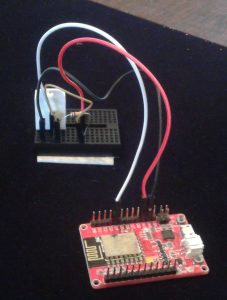
First I had to do the wiring to connect the DHT22 temperature and humidity sensor I purchased like the one used in the tutorial.  I ended up spending a lot of time and muttering various working words trying to get it to work right.  My module has onboard USB and a voltage regulator, so the wiring is much simpler, but I couldn’t get any readings.  I tried resistor changes, testing connections, and verifying voltages among other things.  Finally I discovered that when I specify pin 2 it means D04 (the fifth digital pin) on my board.  So here’s what I ended up with:

2016-08-02 15.35.48

  • The ground pin connects to the fourth pin of the DHT22 (black wire)
  • The D04 digital pin connects to the second pin of the DHT22 (white wire)
  • The 3.3v pin provides voltage (via the red wire) to the both the first pin of the DHT22 and it also goes through a 10K resister to the second pin.


The code is basically pasting together the Adafruit sample code with the code I wrote previously.  It looks like this:

#include <ESP8266WiFi.h>
#include <DHT.h>
#define DHTTYPE DHT22
#define DHTPIN  2

const char* ssid = "name of wifi network";
const char* pass = "wifi network password";
const char* ip = "192.168.1.35";
const int port = 7379;

// Initialize DHT sensor 
DHT dht(DHTPIN, DHTTYPE, 11); // 11 works fine for ESP8266
 
void setup(void)
{
  dht.begin();
  WiFi.begin(ssid, pass);
  while (WiFi.status() != WL_CONNECTED) {
    delay(1000);
  }
}
 
void loop(void)
{
    float temp_f = dht.readTemperature(true);

    WiFiClient client;
    client.connect(ip, port);
    String url = String("/SET/temperature/") + temp_f;
    client.print(String("GET ") + url + " HTTP/1.1\r\n" +
           "Host: " + String(ip) + "\r\n" + 
           "Connection: close\r\n" + 
           "Content-Length: 0\r\n" + 
           "\r\n");
    delay(5000);
} 

I had already started up a Webdis/Redis server as described before, so I could verify it worked by running curl and confirming that it returned a value (in this case 72.68F).

$ curl http://192.168.1.35:7379/GET/temperature
{"GET":"72.68"}

Searching online, I found the ConnectSense CS-TH Wireless Temperature and Humidity Sensor that seems pretty much like what I made, but in a pretty box and costing $150 (granted it does come with some nice software as well).  Now that I have my own budget version, I can look to do something with that temperature data I’m collecting.

My Boots

Boots

Last week while backpacking in the Mount Jefferson Wilderness area, I had a sad incident related to my boots.  There was a stream crossing, but the stream wasn’t running too high, so I just walked right across.  Boy#1 and Boy#2 were with me and neither had waterproof footwear so I went back and carried their packs across so that they could lightly hop across on rocks without wetting their feet.  By then some of the other boys in the party had caught up and I ended up carrying over another three or four packs.  I got my pack on again and started hiking again, and then I noticed that my right little toe was damp.  The seal failed and my boots are no longer waterproof.  It is time to buy new boots.

My boots were purchased back in the late 1990’s, so it’s been awhile since I’ve had to select new boots.  I’ve been thinking about some of the attributes I like about my boots.  In no particular order:

  • Vibram soles – The soles are worn such that the writing is no longer legible on the yellow emblem, but there is still tread.  I rarely wore my boots on man made surfaces which I think contributed to their longevity.  I always had the traction I needed.
  • Waterproof – as long as the water didn’t go above the top, my feet were dry.  The leather upper and integrated one piece tongue are joined so that there are no gaps in the outside barrier.  It was nice to be able to tromp right through water without worrying about wet feet.
  • Step-in crampon friendly – I’ve never done enough mountaineering to justify fancy plastic shell boots, but being able to quickly slap on some crampons for an ascent has been nice.
  • Sturdy lacing system – I’ve got skinny feet, so I really need to be able to tighten things down.  One of the original laces broke back in 2000 while hiking in Rocky Mountain National Park, but I found a store in Estes Park that sold shoe laces by the foot; I took off the unbroken lace and bought new laces in classic red.
  • Smooth lining – With my bony heels, I tend to wear through the back of shoes before anything else.  The smooth lining slowed that wear significantly and also helped to avoid blisters.
  • Ankle support – The boot came up high enough that it gave great ankle support.  The smooth padding allowed me to have the ankle be tight but still comfortable.
  • Classic – My boots have the classic, Italian style look of a hiking boot.  They are simple, honest boots.

I’m sad that it’s time to retire my boots–I’ve had many adventures with them on my feet.  I’m also excited to find new boots and have some new adventures.


My New Toy (Part 2)

In the previous post, I implemented a simple counter with serial output and today I improved it.  The main reason I purchased the ESP8266 module in the first place was to get WiFi for cheap, so I wanted to try out the WiFi capabilities.  The resulting sketch is still a counter, but instead of publishing the count via the serial interface, it connects wirelessly to a database and publishes the count there.

To begin with, I needed a simple database that I could access via HTTP.  Redis is a simple key/value type database, but it doesn’t have an HTTP interface.  I found Webdis “A fast HTTP interface for Redis”.  To set things up quickly, I found that someone had already put everything together and published a Docker image on DockerHub.  So, through the magic of Docker, all I had to do to get Redis and Webdis up and running on my computer was run this magic command:

docker run -d -p 7379:7379 -e LOCAL_REDIS=true anapsix/webdis

I then wrote a sketch that would publish to my new database:

#include <ESP8266WiFi.h>
const char* ssid = "name of wifi network";
const char* pass = "wifi network password";
const char* ip = "192.168.1.35";
const int port = 7379;
int count = 0;

void setup() {
  WiFi.begin(ssid, pass);
  while (WiFi.status() != WL_CONNECTED) {
    delay(1000);
  }
}

void loop() {
  delay(5000);
  WiFiClient client;
  client.connect(ip, port);
  String url = String("/SET/count/") + count++;
  client.print(String("GET ") + url + " HTTP/1.1\r\n" +
               "Host: " + String(ip) + "\r\n" + 
               "Connection: close\r\n" + 
               "Content-Length: 0\r\n" + 
               "\r\n");
}

Basically, it connects to the wifi network (ssid) using the provided password (pass) and then publishes the count to the database (located at ip).  It publishes the new count value every five seconds.

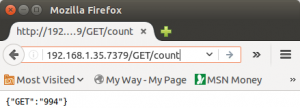
To verify that it was working, I simply plugged this URL into my web browser :

192.168.1.35.7379/GET/count

It returns the current value of count:
getCount

So now I can not only program my new toy, but also use some of its wireless capabilities.  It’s not useful, but it is a good step to learning how to use the ESP8266.

My New Toy (Part 1)

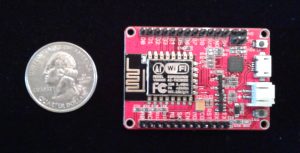
Today my new toy arrived.  It’s an ESP8266 IOT WiFi Module.

ESP8622

Specifically I selected the “Elecrow ESP8266 IOT Board WiFi Module with Built in USB and Battery Charging” out of the many ESP8266 variants because of the following features:

  • Onboard USB (I find it easier than FTDI)
  • NOT breadboard friendly (Pins sticking up not down)
  • In stock and eligible for Prime shipping

To start with, I just wanted to verify that I could run some code on it.  Here’s what I did:

  1. Installed the Arduino IDE from https://www.arduino.cc/en/Main/Software.  I used the latest available (1.6.9).
  2. Configured the Arduino IDE to support ESP8266 boards:
    1. Opened up the preferences and added http://arduino.esp8266.com/versions/2.3.0/package_esp8266com_index.json to the “Additional Boards Manager URLs”.
    2. Opened the “Boards Manager”, found the “esp8266” listing, and clicked the “Install” button (using the latest 2.3.0 version).
    3. Since there wasn’t a specific Electrow entry, I selected “Generic ESP8266 Module” for the board type.
  3. Wrote some code.  Here is my very simple sketch to slowly count and send the number via serial:
    int count = 0;
     void setup() {
     Serial.begin(9600);
     }
     void loop() {
     Serial.println(count++);
     delay(1000);
     }
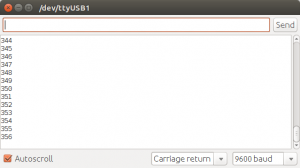
  4. Ran the code.  I uploaded it to the module, opened the serial terminal, and saw that it was counting as designed.
    serialTerminal

Of course it took a bit of kicking and swearing to do that.  Here are a few of the things that I did before everything worked:

  1. Ran the Arduino IDE as root
  2. The upload speed is 115200, but the terminal speed is 9600 baud
  3. Change the reset method to “nodemcu”.
  4. Sometimes (but not always) hold the flash button and than hit the reset button before I could successfully upload my sketch.
  5. Switch USB cords (the first is a cheap, old cord that in recent years has only been used for charging devices).
  6. Check the port whenever I plugged in the module (it sometimes switched between /dev/ttyUSB0 and /dev/ttyUSB1 just to spite me).

There’s nothing exciting about my counting program, but by getting it running I confirmed that I can 1) Connect to the module 2) Upload code to it and 3) Run the code.  Now that I can do that, I can see what else I can make my new toy do . . .